Workflow
The Workflow system in Kinesis API provides a comprehensive Trello-like project management solution built directly into the platform. It enables teams to organize work using Kanban-style boards with lists, cards, checklists, attachments, comments, and more — all managed through an intuitive drag-and-drop interface.
Overview
The Workflow system is organized around a hierarchy of components:
- Boards — Top-level workspaces (like Trello boards)
- Lists — Columns within a board
- Cards — Work items within a list
- Checklists — Task lists attached to cards
- Checklist Items — Individual tasks within a checklist
- Attachments — Files and links attached to cards
- Comments — Discussion threads on cards
- Checklists — Task lists attached to cards
- Cards — Work items within a list
- Lists — Columns within a board
Supporting components include:
- Members — Users assigned to a board with roles and capabilities
- Watches — Notification subscriptions on boards, lists, or cards
- Activities — Audit trail of all board actions
- Notifications — Real-time alerts for board events
- Labels — Color-coded tags for cards
- Custom Fields — User-defined fields with per-card values
Accessing Workflow
To access the Workflow interface:
- Log in to your Kinesis API account
- Navigate to
/workflowin your browser or click “Workflow” in the navigation menu
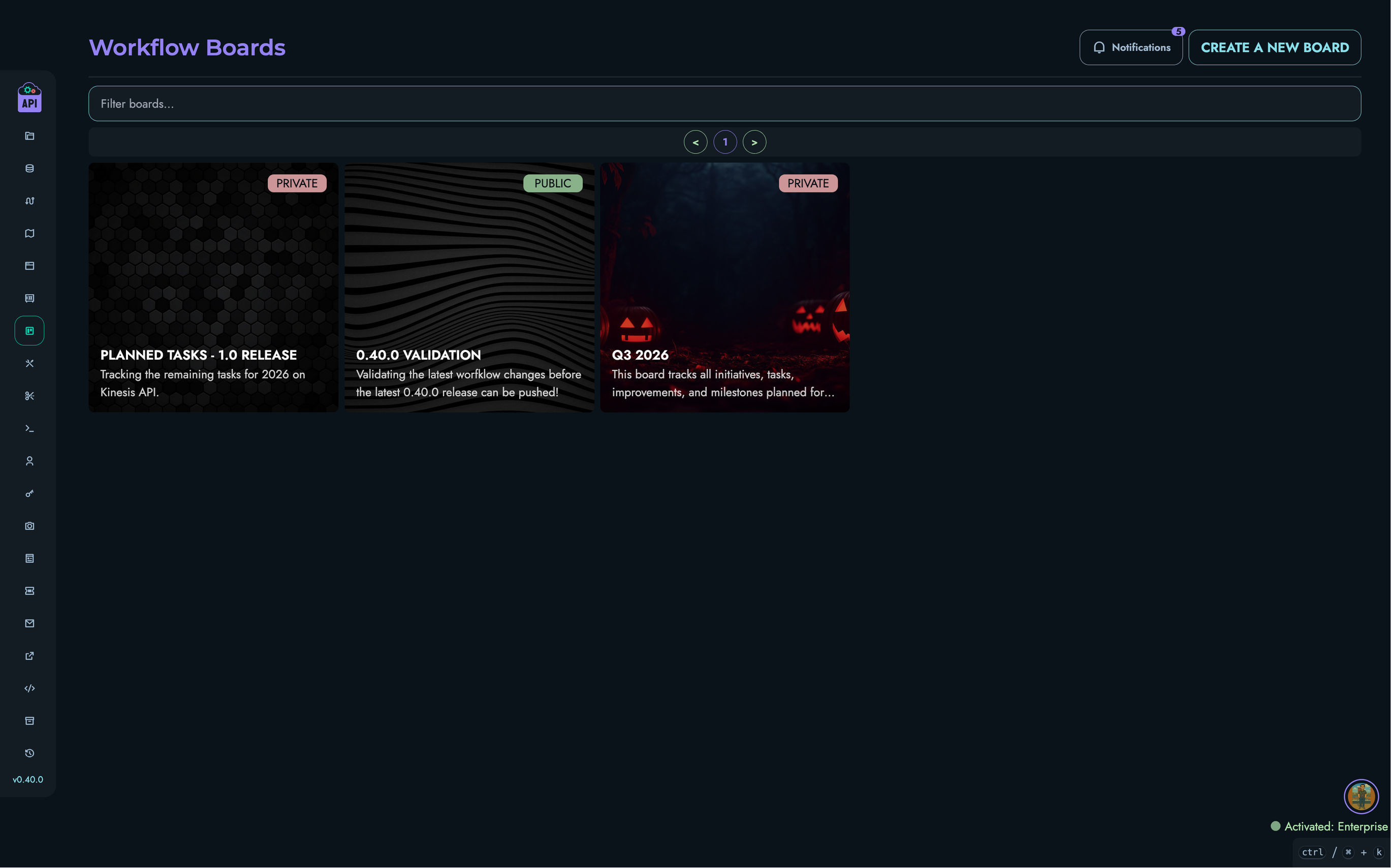
Boards
Boards are the top-level organizational unit in the Workflow system. Each board represents a project, team workspace, or any collection of work you want to track.
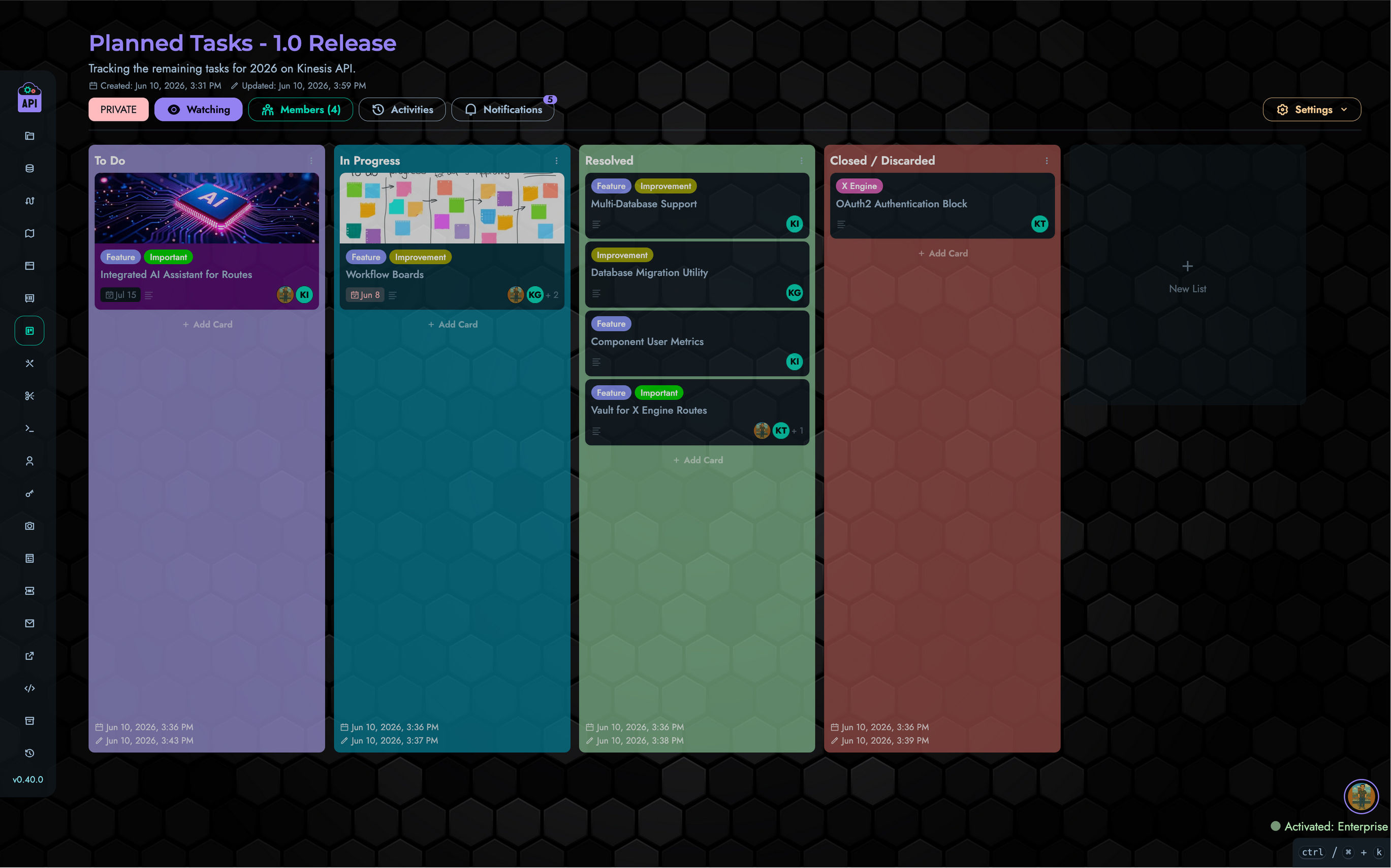
Board Features
- Name & Description — Identifying information for the board
- Background — Custom background image (URL or uploaded) or solid color
- Visibility — PUBLIC (visible to all authenticated users) or PRIVATE (visible only to members)
- Archiving — Boards can be archived to hide them without deleting data
- Labels — Color-coded labels that can be applied to cards
- Custom Fields — User-defined fields (TEXT, NUMBER, DROPDOWN, CHECKBOX, DATE) with per-card values
Board Settings
The Settings dropdown on the board page provides access to:
- Edit Name / Description
- Edit Background Image / Color
- Edit Visibility
- Manage Labels
- Manage Custom Fields
- Archive / Unarchive Board
- Delete Board (ROOT or OWNER only, not available when archived)
Board API Endpoints
| Method | Path | Description |
|---|---|---|
| GET | /workflow/board/fetch | Fetch all boards (paginated) |
| GET | /workflow/board/fetch/one | Fetch a single board by ID |
| POST | /workflow/board/create | Create a new board |
| PATCH | /workflow/board/update | Update a board property |
| DELETE | /workflow/board/delete | Delete a board |
| PATCH | /workflow/board/update/labels | Update board labels |
| PATCH | /workflow/board/update/custom/fields | Update board custom fields |
Lists
Lists are columns within a board that organize cards into categories (e.g., “To Do”, “In Progress”, “Done”).
List Features
- Name — The column header
- Custom Color — Optional background color for the list
- Collapsible — Lists can be collapsed to a narrow vertical bar to save space
- Archiving — Lists can be archived independently
- Drag-and-Drop — Lists can be reordered by dragging horizontally
List API Endpoints
| Method | Path | Description |
|---|---|---|
| GET | /workflow/list/fetch | Fetch all lists for a board |
| POST | /workflow/list/create | Create a new list |
| PATCH | /workflow/list/update | Update a list property |
| DELETE | /workflow/list/delete | Delete a list |
Cards
Cards are the primary work units within lists. They represent tasks, features, bugs, or any item of work.
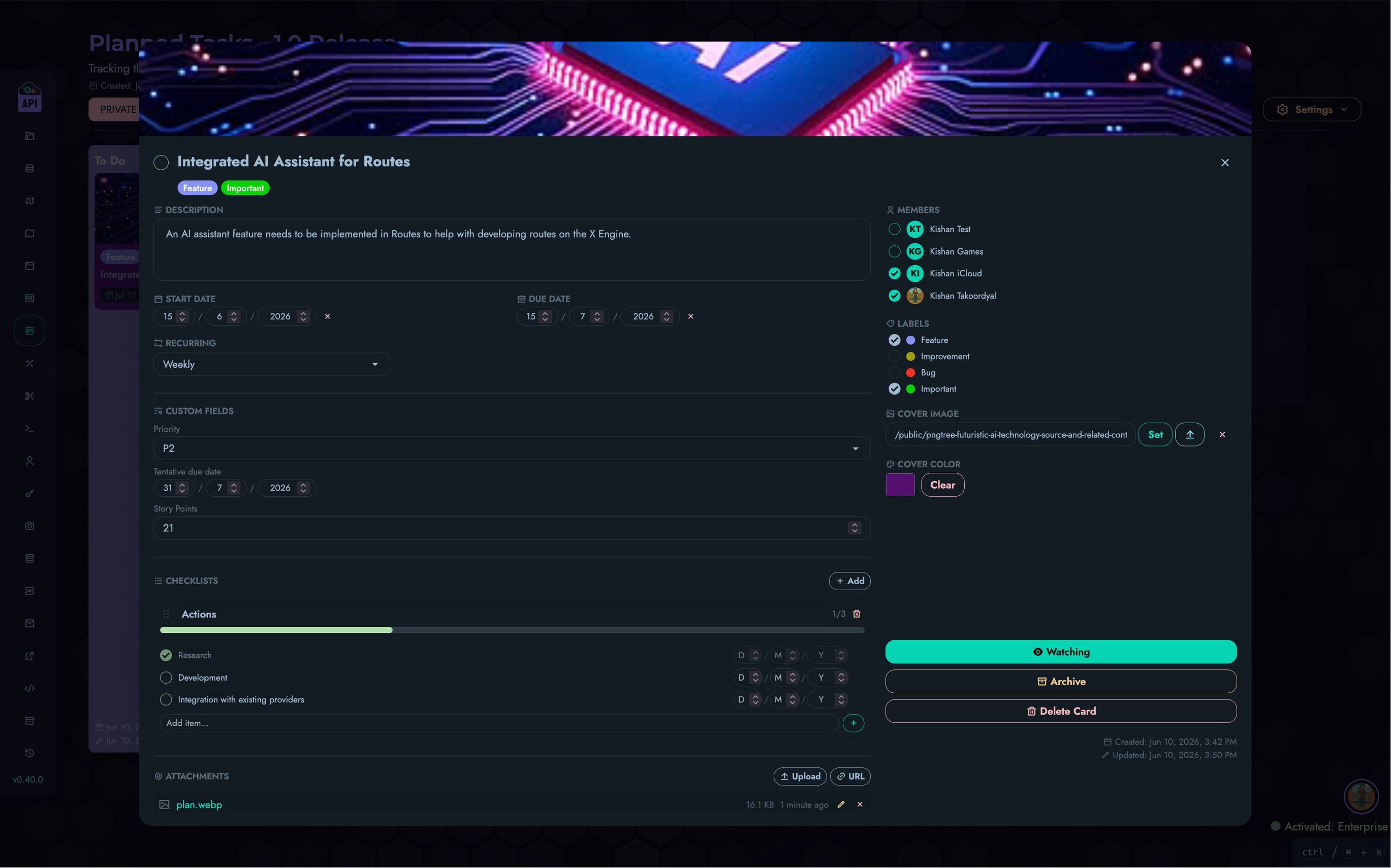
Card Features
- Title — Inline-editable card name
- Description — Rich text area for detailed information
- Cover Image — Optional image displayed at the top of the card
- Cover Color — Optional color strip or full-card background color
- Start Date / Due Date — DD/MM/YYYY date inputs with overdue highlighting
- Recurring — Schedule recurrence (DAILY, WEEKDAYS, WEEKLY, MONTHLY, YEARLY)
- Labels — Apply board-defined color-coded labels
- Custom Fields — Fill in board-defined custom field values
- Members — Assign board members to the card
- Completed — Toggle card completion status
- Archiving — Cards can be archived independently
- Drag-and-Drop — Cards can be reordered within a list or moved between lists
Card Detail Modal
Clicking a card opens a detailed modal with a two-column layout:
- Left column: Description, dates, recurring, custom fields, checklists, attachments, comments
- Right column: Members, labels, cover image/color, watch toggle, archive/delete actions, timestamps
Card API Endpoints
| Method | Path | Description |
|---|---|---|
| GET | /workflow/card/fetch | Fetch all cards for a board |
| POST | /workflow/card/create | Create a new card |
| PATCH | /workflow/card/update | Update a card property |
| PATCH | /workflow/card/move | Move a card to a different list/position |
| DELETE | /workflow/card/delete | Delete a card |
| PATCH | /workflow/card/update/members | Update card member assignments |
| PATCH | /workflow/card/update/labels | Update card label assignments |
| PATCH | /workflow/card/update/custom/fields | Update card custom field values |
Checklists
Checklists allow you to break down card work into smaller, trackable tasks.
Checklist Features
- Multiple Checklists — Each card can have multiple checklists
- Progress Tracking — Visual progress bar showing completed/total items
- Drag-and-Drop — Checklists can be reordered by dragging
- Inline Title Editing — Rename checklists directly in the UI
Checklist Items
Each checklist contains items representing individual tasks:
- Content — Inline-editable task description
- Completion — Checkbox to mark items as done
- Due Date — Optional DD/MM/YYYY due date with overdue highlighting
- Assignee — Optional assignment to a board member
- Removal — Items can be removed individually
Checklist API Endpoints
| Method | Path | Description |
|---|---|---|
| GET | /workflow/card/checklist/fetch | Fetch all checklists for a card |
| POST | /workflow/card/checklist/create | Create a new checklist |
| PATCH | /workflow/card/checklist/update | Update a checklist property |
| DELETE | /workflow/card/checklist/delete | Delete a checklist |
Checklist Item API Endpoints
| Method | Path | Description |
|---|---|---|
| GET | /workflow/card/checklist/item/fetch | Fetch all items for a checklist |
| POST | /workflow/card/checklist/item/add | Add a new item |
| PATCH | /workflow/card/checklist/item/update | Update an item property |
| DELETE | /workflow/card/checklist/item/remove | Remove an item |
Attachments
Attachments allow you to associate files and links with cards.
Attachment Features
- File Upload — Upload any file type through the platform’s upload system
- URL Links — Add external links as attachments
- File Type Detection — Automatic categorization as IMAGE, VIDEO, DOCUMENT, WEB_LINK, or OTHER
- Display Name — Editable display name for each attachment
- File Size — Automatically tracked for uploaded files
- Preview — File type icons for visual identification
Attachment API Endpoints
| Method | Path | Description |
|---|---|---|
| GET | /workflow/card/attachment/fetch | Fetch all attachments for a card |
| POST | /workflow/card/attachment/create | Create a new attachment |
| PATCH | /workflow/card/attachment/update | Update an attachment property |
| DELETE | /workflow/card/attachment/delete | Delete an attachment |
Comments
Comments enable discussion and collaboration on cards.
Comment Features
- Rich Content — Multi-line text with whitespace preservation
- Inline Editing — Edit your own comments directly in the UI
- Emoji Reactions — React with LIKE (👍), LOVE (❤️), LAUGH (😂), SAD (😢), or ANGRY (😠)
- Reaction Summaries — See who reacted and with what emoji
- Multiple Reactions — Users can add multiple different reaction types to a single comment
- Author Attribution — Comments show the author’s avatar and name
- Edit History — Edited comments display an “(edited)” indicator
Comment API Endpoints
| Method | Path | Description |
|---|---|---|
| GET | /workflow/card/comment/fetch | Fetch all comments for a card |
| POST | /workflow/card/comment/add | Add a new comment |
| PATCH | /workflow/card/comment/update | Update a comment |
| DELETE | /workflow/card/comment/remove | Remove a comment |
| PATCH | /workflow/card/comment/react/add | Add a reaction to a comment |
| PATCH | /workflow/card/comment/react/remove | Remove a reaction from a comment |
Members
Board members are users who have been granted access to a board with specific roles and capabilities.
Member Roles
| Role | Description |
|---|---|
| OWNER | Full unrestricted access to the board. Cannot be removed or demoted. |
| ADMIN | Broad access controlled by capability flags. Cannot delete the board. |
| MEMBER | Standard access controlled by capability flags. Cannot manage board-level settings. |
| GUEST | View-only access. Cannot perform any write operations. |
Member Capabilities
For ADMIN and MEMBER roles, the following capabilities can be toggled individually:
| Capability | Description |
|---|---|
| can_edit | Allows creating/updating lists and cards, managing attachments, checklists, and watches |
| can_comment | Allows posting and editing comments |
| can_invite | Allows managing board members (adding, removing, changing roles) |
| can_delete | Allows deleting lists and cards |
Permission Matrix
The following table shows which actions each role can perform:
| Action | OWNER | ADMIN | MEMBER | GUEST |
|---|---|---|---|---|
| VIEW | ✓ | ✓ | ✓ | ✓ |
| UPDATE_BOARD | ✓ | can_edit | ✗ | ✗ |
| DELETE_BOARD | ✓ | ✗ | ✗ | ✗ |
| MANAGE_MEMBERS | ✓ | can_invite | ✗ | ✗ |
| CREATE_LIST | ✓ | can_edit | can_edit | ✗ |
| UPDATE_LIST | ✓ | can_edit | can_edit | ✗ |
| DELETE_LIST | ✓ | can_delete | can_delete | ✗ |
| CREATE_CARD | ✓ | can_edit | can_edit | ✗ |
| UPDATE_CARD | ✓ | can_edit | can_edit | ✗ |
| DELETE_CARD | ✓ | can_delete | can_delete | ✗ |
| COMMENT | ✓ | can_comment | can_comment | ✗ |
| MANAGE_WATCHES | ✓ | can_edit | can_edit | ✗ |
| MANAGE_ATTACHMENTS | ✓ | can_edit | can_edit | ✗ |
| MANAGE_CHECKLISTS | ✓ | can_edit | can_edit | ✗ |
Note: For public boards, VIEW access is granted to any authenticated user, even non-members.
Member API Endpoints
| Method | Path | Description |
|---|---|---|
| GET | /workflow/member/fetch | Fetch all members for a board |
| POST | /workflow/member/add | Add a member to a board |
| PATCH | /workflow/member/update | Update a member’s role or capability |
| DELETE | /workflow/member/remove | Remove a member from a board |
Watches
Watches allow users to subscribe to notifications for specific targets.
Watch Targets
| Target | Description |
|---|---|
| BOARD | Receive notifications for all activity on the board |
| LIST | Receive notifications for activity within a specific list |
| CARD | Receive notifications for activity on a specific card |
Watch API Endpoints
| Method | Path | Description |
|---|---|---|
| GET | /workflow/watch/fetch | Fetch watches for a user/board |
| POST | /workflow/watch/add | Add a watch |
| DELETE | /workflow/watch/remove | Remove a watch |
Activities
The Activity system provides a complete audit trail of all actions performed on a board.
Tracked Actions
Activities are recorded for all significant board operations including:
- Board creation, updates, archiving, and label/custom field changes
- List creation, updates, moves, archiving, and deletion
- Card creation, updates, moves, archiving, completion, and deletion
- Card label, member, custom field, and date changes
- Comment creation, updates, and deletion
- Checklist creation, updates, and deletion
- Checklist item creation, updates, completion toggling, and deletion
- Attachment creation and deletion
- Member additions, updates, and removals
Activity API Endpoints
| Method | Path | Description |
|---|---|---|
| GET | /workflow/activity/fetch | Fetch activities for a board (paginated) |
Notifications
The Notification system delivers real-time alerts to users about board events they are watching.
Notification Types
| Type | Description |
|---|---|
| MENTIONED | User was mentioned in a comment |
| CARD_ASSIGNED | User was assigned to a card |
| CARD_DUE_SOON | A watched card’s due date is approaching |
| CARD_MOVED | A watched card was moved to a different list |
| CARD_ARCHIVED | A watched card was archived |
| CARD_COMPLETED | A watched card was marked as completed |
| CARD_COMMENTED | A new comment was added to a watched card |
| ADDED_TO_BOARD | User was added as a board member |
| REMOVED_FROM_BOARD | User was removed from a board |
Notification API Endpoints
| Method | Path | Description |
|---|---|---|
| GET | /workflow/notification/fetch | Fetch notifications (paginated) |
| PATCH | /workflow/notification/update | Update notification (mark read/unread) |
Drag-and-Drop
The Workflow UI supports HTML5 drag-and-drop for three types of reordering:
- List Reordering — Drag lists horizontally to change their column order
- Card Movement — Drag cards within a list to reorder, or across lists to move them. Visual drop zones appear between cards during drag.
- Checklist Reordering — Drag checklists vertically to change their order within a card
All drag operations update positions via the API and persist immediately.
Access Control
Workflow access follows these general rules:
| Role | Create Boards | Manage Own Boards |
|---|---|---|
| ROOT | ✓ | ✓ (unrestricted) |
| ADMIN | ✓ | ✓ |
| AUTHOR | ✓ | ✓ |
| VIEWER | ✓ (public only) | View only |
Board-level access is controlled by the member system described above. Non-members can only view public boards.
Best Practices
- Use Descriptive Card Titles: Clear titles make cards easier to find and understand at a glance
- Leverage Labels: Use color-coded labels consistently across your board for quick visual categorization
- Break Work into Checklists: Use checklists to decompose complex tasks into trackable subtasks
- Set Due Dates: Keep work on track by assigning due dates to cards and checklist items
- Assign Members: Make ownership clear by assigning members to cards
- Archive Instead of Delete: Archive completed lists and cards to preserve history while keeping the board clean
- Use Custom Fields: Define custom fields for structured data that applies to all cards (e.g., story points, priority scores)
- Watch What Matters: Subscribe to watches on boards, lists, or cards you need to stay informed about